


Page 93 - Customize-Project-Plan-by-tailoring-Smartsheet
P. 93
Customize your Project Plan
by tailoring Smartsheet
The formula should now look the same as here. But again, please be aware that you cannot just copy
and paste this formula, it needs developed step-by-step, otherwise it doesn't work (especially the
curly brackets are done by Smartsheet but not from the user itself).
=VLOOKUP([Team Function]@row, {Team Range 1}, 4, false)
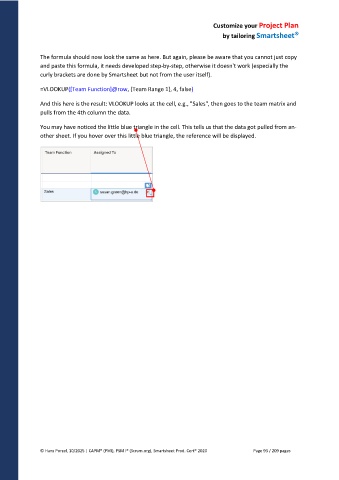
And this here is the result: VLOOKUP looks at the cell, e.g., "Sales", then goes to the team matrix and
pulls from the 4th column the data.
You may have noticed the little blue triangle in the cell. This tells us that the data got pulled from an-
other sheet. If you hover over this little blue triangle, the reference will be displayed.
© Hans Porzel, 10/2025 | CAPM® (PMI), PSM I® (Scrum.org), Smartsheet Prod. Cert® 2020 Page 93 / 209 pages

