


Page 169 - Customize-Project-Plan-by-tailoring-Smartsheet
P. 169
Customize your Project Plan
by tailoring Smartsheet
(5) Then we create a new column, "Timing Status", with the data type "Symbol" (red, yellow,
green, blue).
red = Still open task, but Due Date has already passed, ALARM
yellow = Due Date within 3 days, pay ATTENTION
green = Due date NOT passed yet, therefore OKAY
blue = Task accomplished, already DONE
Then we care for the "Timing Status" and place this formula there:
=IF(Done@row = 1, "Blue", IF(Finish@row < $[Status Day]$1, "Red", IF($[Status Day]$1 - Finish@row
> -3, "Yellow", IF(Finish@row > $[Status Day]$1, "Green"))))
We don't convert this into a column formula yet, because we are later supposed to make still some
changes at some certain cells.
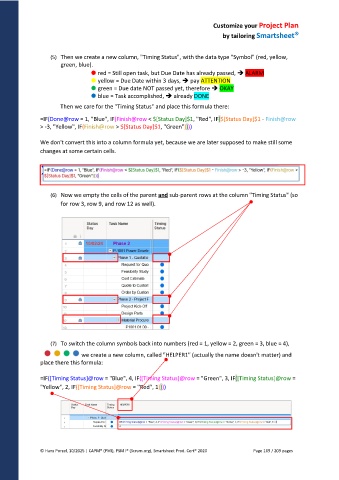
(6) Now we empty the cells of the parent and sub-parent rows at the column "Timing Status" (so
for row 3, row 9, and row 12 as well).
(7) To switch the column symbols back into numbers (red = 1, yellow = 2, green = 3, blue = 4),
we create a new column, called "HELPER1" (actually the name doesn't matter) and
place there this formula:
=IF([Timing Status]@row = "Blue", 4, IF([Timing Status]@row = "Green", 3, IF([Timing Status]@row =
"Yellow", 2, IF([Timing Status]@row = "Red", 1))))
© Hans Porzel, 10/2025 | CAPM® (PMI), PSM I® (Scrum.org), Smartsheet Prod. Cert® 2020 Page 169 / 209 pages

